
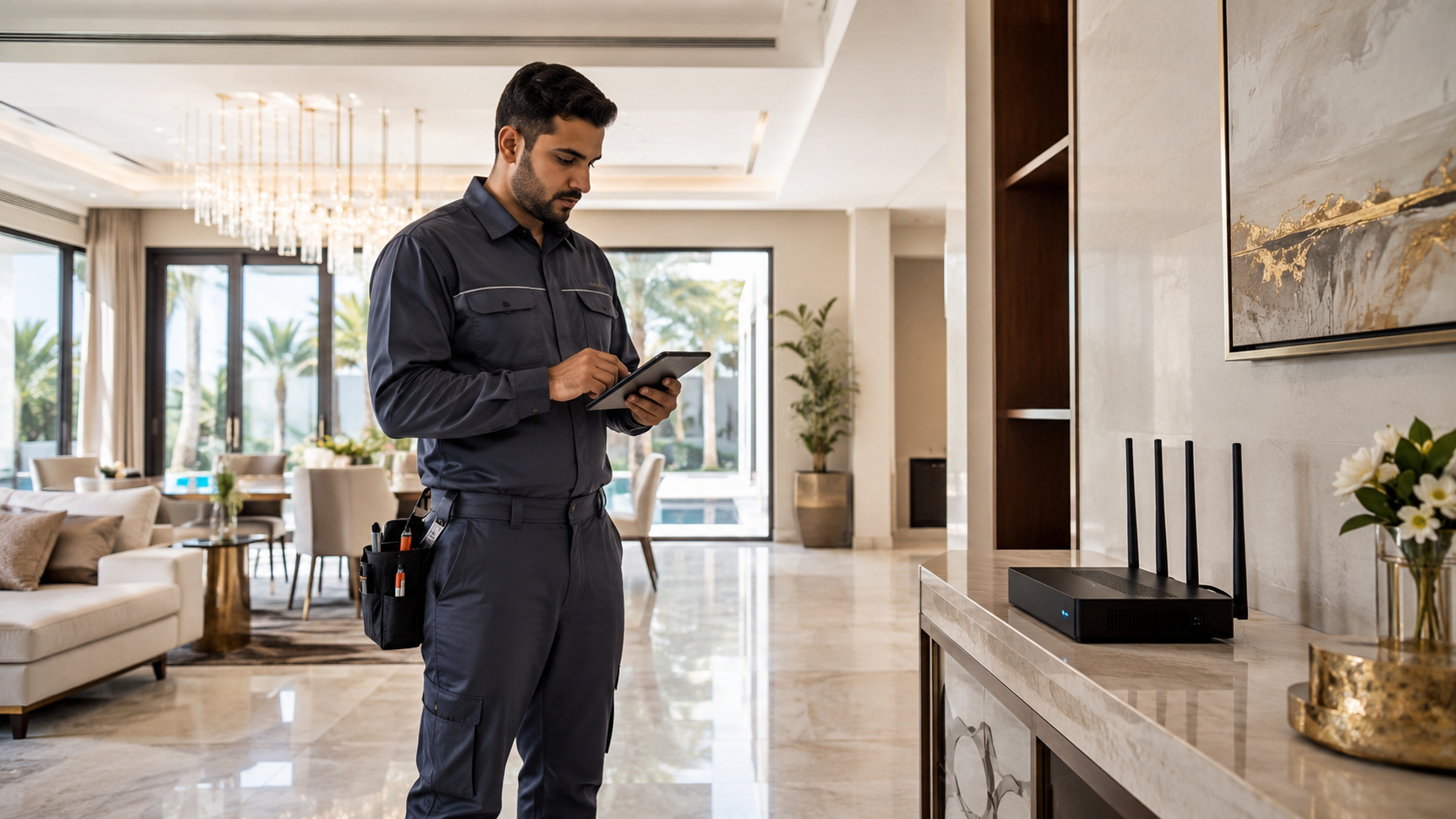
Buying a new router feels like an easy solution when WiFi becomes slow, unstable, or weak in some rooms. A newer device can improve speed and coverage, but only if it is installed and configured correctly. Many people replace their router and still face the same problems because the setup mistakes remain unchanged.
A new router should not just be plugged in and forgotten. The location, settings, security, cable connection, and device load all affect how well it performs. If you want stronger WiFi from the start, avoid these common mistakes during setup.
Mistake 1: Placing the Router in the Wrong Spot
The most common mistake is placing the router in a corner, behind the TV, near the floor, or inside a cabinet. These locations reduce signal strength and create weak areas around the home. A router should be positioned where the signal can spread more evenly.
Choose an open and central location whenever possible. Keep it away from thick walls, metal surfaces, mirrors, and large appliances. If the router is installed too close to one side of the home, the other side may receive poor coverage. Placement matters as much as the router model itself.
Mistake 2: Using Old Cables with a New Router
Many users upgrade the router but keep using old or damaged Ethernet cables. This can limit speed and cause connection problems. If the cable between the modem and router is poor quality, loose, or outdated, the router may not receive the full internet speed.
Check the cable condition before completing the setup. Use a good-quality Ethernet cable that supports your internet plan speed. Also, make sure the cable is firmly connected to the correct WAN or internet port on the router. A simple cable issue can make a new router perform badly.
Mistake 3: Keeping Default Network Details
Default WiFi names and passwords are not ideal for home use. They may be hard to remember, easy to guess, or less secure. After installing a new router, change the WiFi name and create a strong password.
Use a password that is not connected to your phone number, address, name, or common words. Also, update the router admin login details if possible. The WiFi password protects access to the internet, while the admin password protects the router settings. Both are important.
Mistake 4: Ignoring the 2.4 GHz and 5 GHz Difference
A new router may offer both 2.4 GHz and 5 GHz networks. Some users connect every device to one band without understanding the difference. This can cause weak signal or slower speed depending on the distance from the router.
The 2.4 GHz band is better for longer distance and rooms with walls in between. The 5 GHz band is better for faster speeds when the device is closer to the router. Smart TVs, gaming consoles, and work laptops may perform better on 5 GHz if they are nearby. Devices farther away may stay more stable on 2.4 GHz.
Mistake 5: Not Updating Router Firmware
A router’s firmware controls how it works. New routers may still need updates after installation. Firmware updates can improve stability, fix bugs, improve security, and support better performance.
Log in to the router admin panel and check for firmware updates. Some routers can update automatically, while others need manual approval. Do not turn off the router during an update. If you are unsure, read the router instructions carefully before starting.
Mistake 6: Connecting Too Many Devices Without Planning
Modern homes have many connected devices. Phones, laptops, tablets, smart TVs, cameras, speakers, gaming consoles, printers, and smart home products all use network resources. If everything connects without any planning, the router may become overloaded.
During setup, check how many devices will connect regularly. Some routers allow guest networks, parental controls, device priority, or quality-of-service settings. These features can help manage traffic better, especially if multiple people stream, work, or game at the same time.
Mistake 7: Expecting One Router to Cover Every Area
One router may not cover every home perfectly, especially if the layout is large, has thick walls, or includes multiple floors. A powerful router helps, but it cannot break the limits of distance and building structure.
If some rooms still have weak WiFi after correct placement, you may need a mesh system, wired access point, or properly placed extender. Do not place extenders randomly. They should be installed where they can still receive a strong signal from the main router.
Mistake 8: Skipping a Final Speed and Coverage Test
After setup, many people only check whether the WiFi name appears. That is not enough. You should test speed and stability in the rooms where you use the internet most. Check the living room, bedroom, home office, kitchen, and any area where video calls or streaming are common.
Test more than one device. If one device is slow but others are fine, the issue may be with the device. If all devices are weak in the same area, the issue is likely coverage. Testing helps you fix the problem early instead of waiting until it becomes frustrating.
When to Get Expert Setup Help
A new router can solve many problems, but only when it matches the home layout and is configured correctly. If you are unsure about router placement, WiFi bands, mesh setup, firmware updates, or security settings, a router setup service can help avoid common mistakes and save time.
Final Thoughts
A new router is only useful when the setup is done properly. Poor placement, old cables, weak passwords, ignored firmware updates, and wrong WiFi band selection can all reduce performance. Before blaming the router or internet provider, make sure the basic setup is correct.
Good WiFi starts with smart installation. Place the router carefully, secure the network, test every important area, and choose the right coverage solution if one router is not enough. This gives your home a stronger and more stable internet experience from the beginning.

 Arabic
 French
 Spanish
 Portuguese
 Deutsch
 Turkish
 Dutch
Dutch
 Italiano
 Russian
 Romaian
 Portuguese (Brazil)
 Greek
Greek